Watch Anytime
You're no longer tied to a signal — save YouTube videos to your iPhone and watch offline on the train, on a flight, or anywhere coverage drops.
Quick answer
YouTube Downloader for iPhone is a free, browser-based tool that saves YouTube videos and audio straight to your iPhone, with no app to install — Apple doesn't allow third-party downloader apps on the App Store, so everything runs through Safari or any iOS browser. Paste a video link, choose MP4 or MP3 and a quality, then save. It works the same way on iPhone and iPad.
| Price | Free, no sign up needed |
|---|---|
| Quality | SD up to Full HD and 4K |
| Formats | MP4 video or MP3 audio |
| Device | iPhone and iPad, via Safari or any browser |
| App install | None — runs entirely in the browser |
Save YouTube videos and audio straight to your iPhone with our YouTube Downloader for iPhone. It's built around one simple screen — open it in your browser, pick a format and quality, and save straight away, with no account standing in the way.
It runs as a secure, browser-based tool with no personal details requested, so there's no sign up form, no login screen, and no risk of ads, malware or pushy pop-ups. Save YouTube videos as MP4 in SD, HD, Full HD or 4K to watch offline on the Tube, on a flight, or anywhere with a patchy connection.
Unlike other tools, it never asks for a premium subscription. Just open it and paste the link of videos you own, Creative Commons or public-domain content, or someone else's video only with their permission — downloading or reusing someone's media without permission goes against YouTube's terms and can land you in trouble.
Good to know
Apple doesn't let you install third-party downloaders or tools from the App Store, but an online YouTube video downloader works perfectly well on iPhone because it saves through the browser rather than needing access to the phone's internal storage. Open it in Safari, pick MP4 or MP3, and tap Download for a quick save. It's free, needs no installation, and works on nearly every iPhone still receiving iOS updates.
Step by step
Saving a YouTube video takes a few taps, straight from Safari — the same steps work on iPad too.
Benefits
You're no longer tied to a signal — save YouTube videos to your iPhone and watch offline on the train, on a flight, or anywhere coverage drops.
Unlike YouTube Premium or other paid downloaders, there's no fee on our site — keep using it completely free, with no subscription.
YouTube doesn't let you save videos to local storage, even from your own account — now you can download to MP4 or MP3 for personal, educational or fun use.
A simple layout built for comfortable browsing on a phone screen — open it whenever you like for unlimited downloads.
Since Apple blocks downloader apps from the App Store, this tool works safely through Safari instead — no odd permissions or configuration profiles.
Most videos are ready to save within seconds of pasting the link, even on a modest mobile connection.
Formats & quality
YouTube to MP4 fetches the video in MP4 format — watch it offline, edit it, or share it with friends with permission.
Convert YouTube videos, Shorts and playlists to audio with YouTube to MP3 for offline listening.
Pick a quality from 720p and 1080p up to 4K, depending on what the original upload supports.
Download YouTube videos and Shorts with subtitles as SRT files for better accessibility.
On iPhone, downloaded files go to Safari's default download folder. You can also find them in the Files app, then save them from there to your iPhone's Photos app.
Tips
Use a stable Wi-Fi connection when downloading in 4K or Full HD to avoid an incomplete file.
Choose MP4 if you want the video, or MP3 if you only need the audio, to save space on your iPhone.
Check your free storage before downloading several high-quality videos.
Preview the video before saving to make sure it's the right one.
Only save Creative Commons, public-domain content, or videos you have permission to use.
In short
YouTube Downloader for iPhone is the simplest way to save YouTube videos and audio straight to your iPhone, with no app install, no sign up and no fees. Open it in Safari, paste a link, choose MP4 or MP3 and your preferred quality, then save in seconds — ready to watch or listen offline, anywhere in the UK or abroad.
Questions
Yes — open Safari, search for a YouTube downloader, open the tool, and paste the video link to save it, with no fee at any point.
No, no app or software is needed. Just a modern browser and an internet connection — open the online tool and save as many videos as you like.
That depends on whether the video is for personal or commercial use. Downloading from your own account is fine, but saving someone else's video without permission is not.
Use an online downloader through Safari to save the file, then export it from your downloads into your camera roll.
Yes — if the original video is available in 4K, you can save it at that quality. Higher-quality files take up more storage, so check you have enough space first.
Convert the music video to MP3 using an online downloader, then save the audio file to your iPhone for offline listening.
This usually happens when storage is full, the link is wrong, the video is private, or you've tapped a fake download button.
It depends what you need — Premium costs a monthly fee and only lets you save videos inside the app, while a downloader saves the file to your storage for offline viewing, editing or reuse with permission.
Paste a YouTube link and save video or audio in seconds, right in Safari.
Save entire YouTube playlists, music and videos on Mac as MP4 or MP3 — free, secure and without a premium subscription.
Download an entire YouTube playlist — a music collection, a lecture series or a podcast — in one go, as MP4 or MP3, free and without signup.
Save YouTube videos and playlists in up to 4K and convert them to MP3 instantly — free, with no watermark, sign-up or daily limit.
A downloaded YouTube video not playing on iPhone is a quick fix — here's why it happens and how to save videos that play every time.
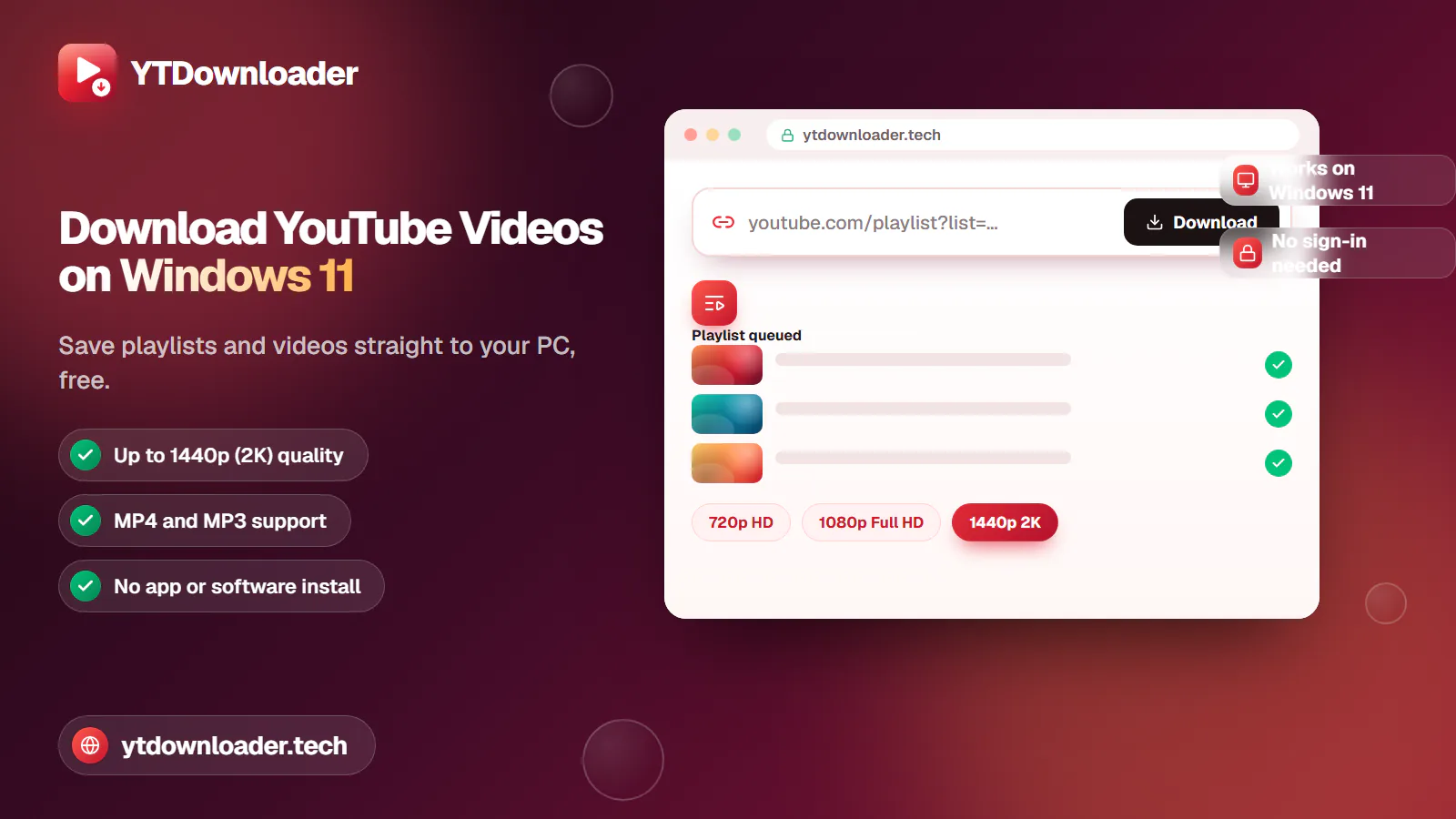
Save entire YouTube playlists and videos on Windows 11, up to 2K Ultra HD, without personal information, an app install or daily limits.
Convert YouTube videos, Shorts and playlists to MP3 audio up to 320 kbps on iPhone, Android, Windows or Mac — free, with no sign-in or software install.
Tested for ads, malware and quality limits — see why our free YouTube downloader saves videos, music and entire playlists up to 4K, with no sign-up.